Mounting
Mounting Source Code
VSCode devcontainers
Happens automatically with a volume mount (opens in a new tab), as described in VSCode Devcontainers Overview > Developing inside a Container (opens in a new tab):
Workspace files are mounted from the local file system or copied or cloned into the container. Extensions are installed and run inside the container, where they have full access to the tools, platform, and file system. This means that you can seamlessly switch your entire development environment just by connecting to a different container.
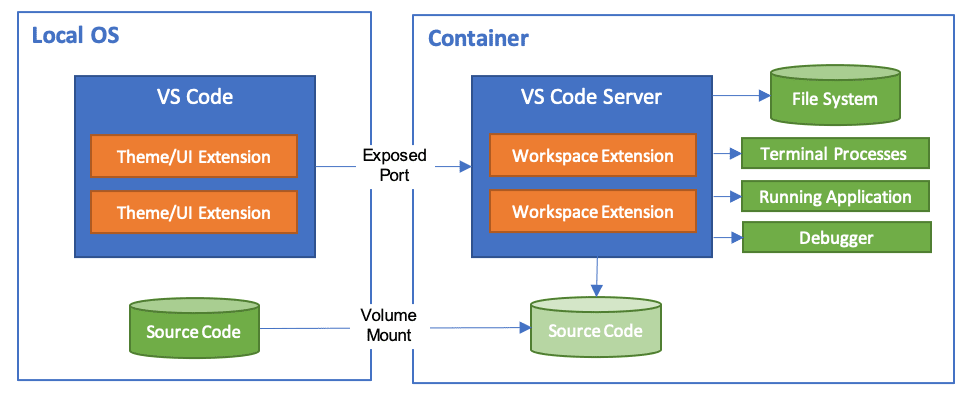
Docker manually
From Ultimate Guide to Dev Containers (opens in a new tab):
To get started developing in a container, you'll first need to mount your source code as a volume. This allows you to edit your code in your IDE of choice on your host machine, while building and running it in the container. There are a couple ways to mount your source code:
Bind Mounts (opens in a new tab)
The easiest approach is to use bind mounts. This mounts a directory on your host machine into the container. Anything you change on the host will be reflected in the container and vice versa. To set up a bind mount, you specify the -v flag when running your container, like this:
docker run -v /path/on/host:/path/in/container ...So if your code was in /home/user/code on your host machine, and you wanted to mount it to /app in your container, you'd run:
docker run -v /home/user/code:/app ...Now your container will have your source code in the /app directory, and any changes you make on either the host or in the container will be mirrored in the other.
Volume Drivers (Mounts) (opens in a new tab)
Bind mounts are simple but have some downsides, like permissions issues. An alternative is to use a volume driver. Volume drivers handle more advanced storage options for Docker volumes. Some free options are:
- Local: The default driver. Uses bind mounts.
- CIFS: Allows you to mount Windows file shares.
- NFS: For *nix file shares.
- OverlayFS: An advanced option with better performance than bind mounts.
To use a volume driver, you specify it after the -v flag, in the format:
docker run -v :: ...So to use the overlayFS driver to mount your code, it would be:
docker run -v overlayFS:/path/on/host:/path/in/container ...Volume drivers open up more advanced options for managing your Docker volumes and avoiding some of the issues with bind mounts. I'd recommend starting with bind mounts for simplicity, but exploring volume drivers as your needs evolve.